 MPXAir docs
Using MPXAir
Parameters
Every setting on the aircraft, grouped, searchable and explained — and changed safely.
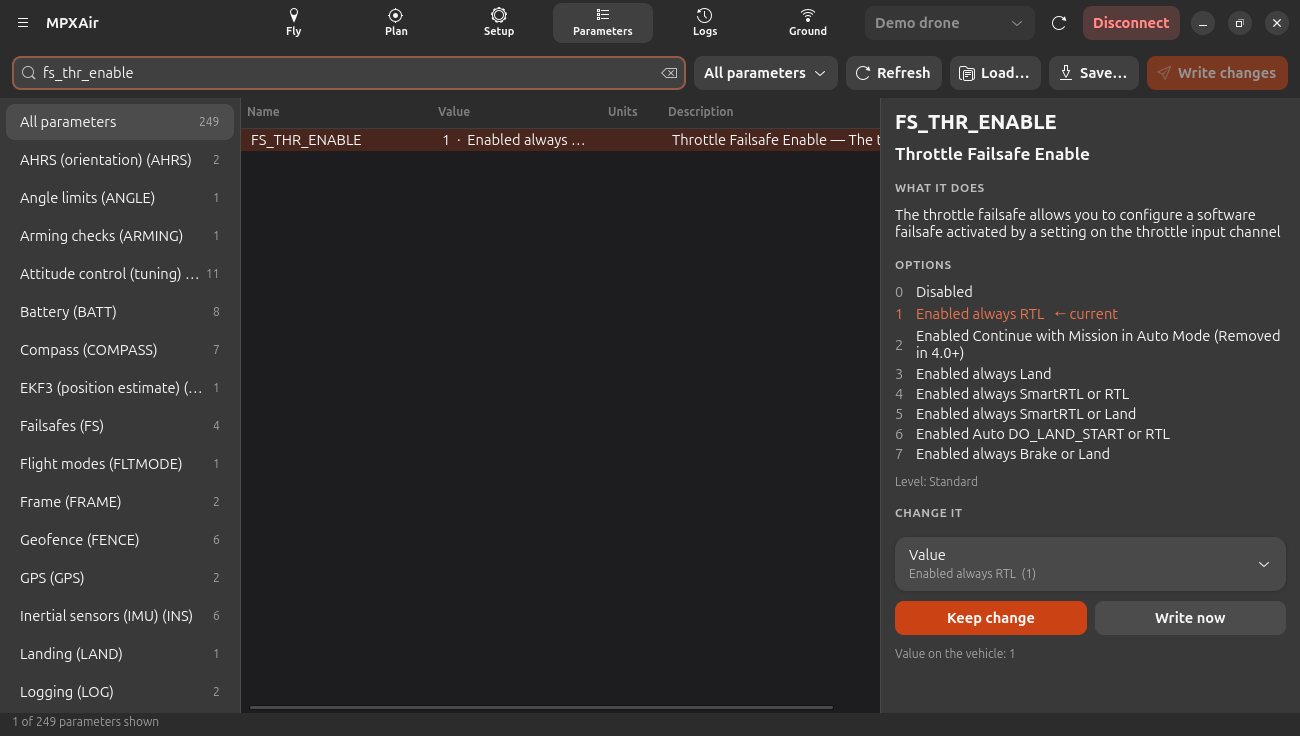
Finding a parameter
- Groups (left): browse by subject, such as Battery (BATT), Failsafes (FS), Servo / motor outputs (SERVO) and EKF3 (EK3), without knowing the exact name. Small groups are under Other.
- Search: type part of the name or of the description, such as
rtl altorbattery capacity. Searching always looks at every parameter. - Filter: All, Changed (not yet written), Standard or Advanced.
- Hover over any row to see what it does.
Changing parameters
- Select a parameter. The editor on the right shows its description, units, range and a control: a dropdown for named values, switches for bitmasks, or a number field.
- Press Keep change to collect it (changed values are highlighted), or Write now to send it straight away.
- Press Write changes at the top to send everything you collected. If any parameter needs a reboot, MPXAir offers to do it.
Files
- Save… writes every parameter to a
.paramfile (Mission Planner format). - Load… reads a Mission Planner, MAVProxy or QGroundControl file. It compares it with the aircraft and stages only the differences for you to review. Calibration and counter values are never overwritten.
Descriptions
Select a parameter to see, on the right:
- What it does: the full description;
- Options: what each value means, with the current one marked (or the bits, for bitmasks);
- its range, units and step, and whether it needs a reboot.
When you connect while online, MPXAir downloads the descriptions that exactly match the aircraft's firmware version (for example ArduCopter 4.7.1), as Mission Planner does. They are cached, so they also work offline later. Without internet it uses the bundled descriptions. Preferences → Telemetry → Update downloads ArduPilot's latest set by hand.